
See how a post will look on each network before it goes live, then schedule it. Every scheduled post lands on a calendar with month, week and list views, where you drag it to a new slot or click it to edit.
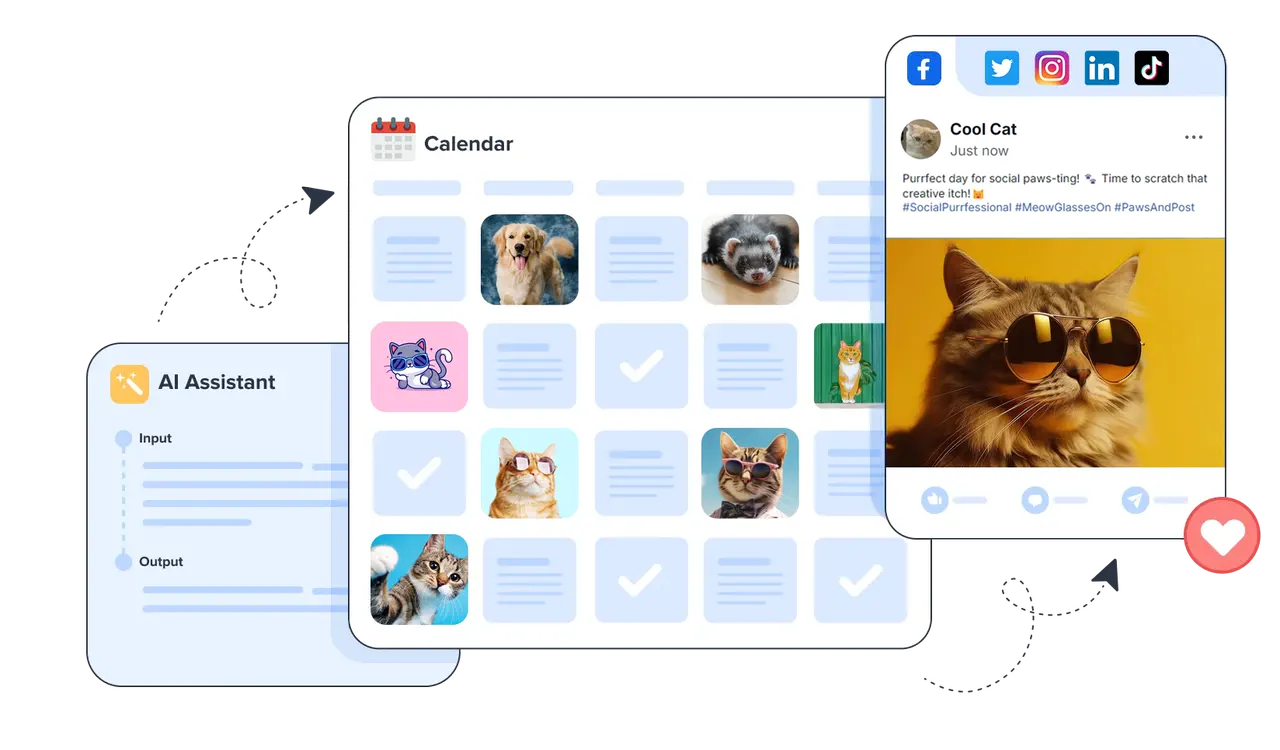



The composer's preview column draws one card per selected account, in that network's layout: an Instagram post with carousel dots when you add several images, a vertical TikTok frame, a YouTube video card, and LinkedIn, X and Facebook posts.
If you customise the caption or media for one network, its card shows that version, so you review exactly what each audience gets.
Above the preview, the composer lists issues per account so a post doesn't fail on one network while it succeeds on the others:
Each brand has its own calendar showing what's scheduled across all of its connected accounts.
Switch views to see the month at a glance, plan a week hour by hour, or scan upcoming posts as a list.
Move a post to another day or time, then save. The new time is sent to the scheduled post.
Show one account or several, and narrow the view to posts, Reels, videos or TikTok drafts.
On paid plans, turn on AI suggestions to add dated post ideas to the calendar. Click one to open a pre-filled draft.
Facebook, Instagram, LinkedIn, TikTok, X and YouTube. Each selected account gets its own preview card in that network's layout before you schedule.
Yes. Drag the post to a new day or time in the calendar and save your changes, or click the post to open and edit it.
At least 10 minutes from now. The composer warns you if the time is too close; choose Publish now to post immediately instead.
On paid plans, yes. Advanced includes AI recommendations and Elite adds AI-recommended scheduled posts. Suggestions appear on the calendar with a date, a short brief and a suggested time; clicking one opens a pre-filled draft.
Free covers 1 brand with 2 accounts, Advanced 3 brands with 5 accounts each, and Elite 10 brands with 25 accounts each. Each brand has its own calendar.
Preview, schedule and rearrange posts for every network from one calendar. The Free plan covers 2 connected accounts.